HTML provides two main ways to add descriptive text to page elements: the alt attribute, and the title attribute. While these two attributes may appear to work in a similar way, they have quite different purposes. This article takes a look at these two attributes, explores their similarities and differences, and shows how to use both attributes correctly.
The HTML alt attribute
<element alt="text" ... />
Use the alt attribute to supply an alternative description of the element. The text you use for the alt attribute is shown to a visitor when their browser doesn’t display the element itself. Often it’s shown in the space where an image would normally appear.
Here’s how Opera 9 displays the alt text of an image when the image itself can’t be shown:

alt text for a missing imageThe alt attribute can only be used with the following HTML elements:
img- Specifies an alternative description of an image to be shown when the image is not displayed.
area- Specifies an alternative description of an area of an image map to be shown when the image is not displayed.
input- Specifies an alternative description of a form control to be shown when the control is not displayed. Practically speaking, this is nearly always used to describe the image used in an
<input type="image" ... / >form button. However some browsers might use it for other controls – for example, when the browser can’t render a checkbox or a radio button. applet- Specifies an alternative description of an applet to be shown when the applet is not displayed.
Of the above elements, the alt attribute is required for img and area, and optional for the other two. In other words, if you don’t include an alt attribute in an img or area tag, it’s invalid HTML.
So when might an image not be displayed in a browser? Here are some common scenarios:
- the image couldn’t be found
- the visitor has turned off image loading in their browser
- they’re using a text-only browser (such as Lynx), or
- they’re using a screen reader for the visually impaired (such as JAWS or Window-Eyes).
Writing good alt text
Use the alt attribute to provide a short, accurate description of the element. The alt text should adequately describe the element, and it should make sense to a visitor in the situation where the element isn’t displayed. Don’t use alt text to provide additional information about the element; this is what the title attribute (described below) is for.
Although the alt attribute is required for img and area, this doesn’t mean that the value of the attribute can’t be empty. In fact, a lot of the time, it should be empty — for example, if the image is purely decorative, and doesn’t need to be described to anyone who can’t see it.
Some examples of good alt text:


"Photo of a purple computer mouse"
"'Clouds and rain' icon"
"Buy a WonderWidget today!"
""
Some examples of bad alt text:
"Mouse required to play this game""Forecast for Wednesday""Click Here""A blue bullet point"
The HTML title attribute
<element title="text" ... />
Use the title attribute to provide additional information about the element. The text you use for the title attribute is shown to a visitor as well as the element itself. Most browsers display title text in a yellow tool tip that appears when you hover your mouse over the element. Some, though, display the title text in the status bar.
The screenshot below shows how Opera 9 renders title text for an img element.
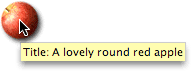
title text for an imageThe HTML title attribute can be used with all elements except the following:
basebasefontheadhtmlmetaparamscripttitle
The title attribute is always optional; no HTML element requires that you include a title attribute.
Some good uses of title text
Use title text in any situation where it aids the understanding and usability of your page. Classic examples include:
- Supplying additional info about an image. You can use
titletext to describe an image in more detail. For example, you might mention where a photo was sourced from, the date and place it was taken, and the name of the photographer. - Adding descriptive text to a link. If the link text (the text between the
<a>and</a>tags) is not very descriptive, add atitleattribute to the<a>tag to supply more detailed info. Here’s an example:titlespecification. (Try hovering over the link to see thetitletext.) - Explaining a form field. If the meaning of a form field is ambiguous, you can clarify its meaning by adding a
titleattribute to the field’s associatedlabelelement. For example, a field label that reads “Qty” might have atitleattribute with the value “Please enter the number of WonderWidgets you want to purchase”.
Using HTML alt and title text
To summarize:
- Use the HTML
altattribute to provide alternative text for an element, to be shown when the element can’t be displayed. - Use the
titleattribute to supply additional text to describe the element in more detail when necessary.
If you need more info, try the descriptions of the alt and title attributes in the official W3C HTML 4 specification. There’s also a great discussion of when to use alt and title over at the 456 Berea Street blog. Enjoy!
I had wrongly specified alt attributes for images on all my web pages (that amount to hundreds) in order to display a browser tooltip. However, it was only when IE8 was released that it became apparent to me that I should have used the title attribute instead to display tooltips.
Anyway, I found a very useful Windows application called Alt&Title that automatically adds missing title attributes to applicable HTML tags. It saved me many hours of work and now my Web page images have tooltips again in IE8 and Firefox 🙂
If there are other Web designers who have lots of images with missing title attributes (and tooltips), here is a link to the Web page promoting Alt&Title…
http://www.flysoftware.com/products/altandtitle/overview.asp
@crymealake: Thanks for the suggestion, but why not just use a text editor’s search and replace? Many free text editors have a regular expression search and replace function that could easily add title attributes based on alt attributes.
$19.99 seems like a lot of money for an app that just does that one small thing.
Also I wouldn’t recommend adding a title attribute globally to all elements. It should only be used when an element is not sufficiently descriptive in its own right.
Hi Matt, Interesting article. Thanks for mentioning that the alt attributes is incorrectly referred to as the “alt tag”.
Cheers,
mauco
Thanks for the reply Matt,
Alt&Title did give me the option to ignore certain images that would not require a title attribute (or even an alt attribute), i.e. a shim or a background image.
I never realised the search and replace facility found in text/HTML editors could locate an alt attribute and its associated text, then add a title attribute to the same tag based on the alt attribute’s content. I understand you could replace the word alt with title, but then you are losing the alt attribute, and vice versa. However, if you could explain how you can use search and replace to add a title attribute to an img tag based on an alt attribute the tag already contains, please enlighten me as I am sure I would find this very useful. I use Dreamweaver BTW and after a quick look could not find a facility to do this within find and replace.
I wanted to have alt attributes and title attributes for relevant images, and Alt&Title allowed me to do that. It worked well for me, and the cost of $19 was miniscule compared to the time it would have taken me to manually add title attributes to relevant images (there were 100s of them). Money well spent in my opinion 🙂
@mauco: Glad you enjoyed it. 🙂
@crymealake: Actually it’s even easier in Dreamweaver since you can search for tags that do or don’t have a certain attribute. Here’s an excerpt from The Essential Guide to Dreamweaver that shows how to do it:
http://books.google.com.au/books?id=aWNzlx-AU6sC&lpg=PA226&ots=V0XOve0wQd&pg=PA226#v=onepage&q=&f=false
FrontPage works in much the same way:
http://25yearsofprogramming.com/blog/20070817.htm
alt “tags” my favourite rant!
http://www.candsdesign.co.uk/articles/seo-and-design/elements-tags-attributes-and-values/
and you should read http://www.rnib.org.uk/wacblog/articles/too-much-accessibility/too-much-accessibility-title-attributes/
Thanks for posting those links Chris. I like your article – it clearly explains tags and attributes, alt and title, and the “nofollow” attribute value.
Unfortunately the RNIB link no longer appears to work. 🙁